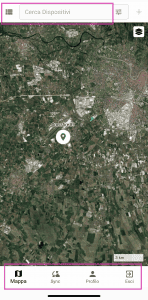
HOME PAGE
After logging in, the app shows the map with geo-located devices and the command and control menu
From this view you can see the map with the geolocation of all the devices connected to your account. The location pointer can take on the following colors:
- GREEN: Device connected and working
- RED: Device disconnected (The map will display the last detected location)
- ORANGE: Device put in Stand by of the user (The map will display the last detected location)
On the main screen there is a menu at the bottom of the application that will remain fixed. Items that populate the menu:
- MAP: This is the "home page" button of the application. Pressing the map button from any screen of the application will return to the home screen.
- SYNC: This button prompts DiscoveRig Servers to synchronize the connection status, battery status, GPS On/Off status, Upload time and last detected location of all your DiscoveRig devices connected to your account. The SYNC function is critical when using DiscoveRig from multiple locations for example from both WebPortal (Pc) and App, or from multiple applications at the same time.
- PROFILE: From this section you can change the Password for accessing the DiscoveRig portal and you can manage, enabling or disabling, E-Mail notifications regarding the status of your DiscoveRig.
- EXIT: The exit button logs out of the DiscoveRig portal
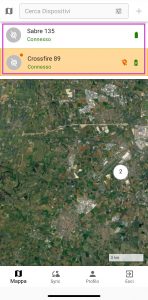
DEVICE LIST
In the top section of the application there is a small button and a search box, by pressing the "Device List" button you can see a list of all the devices associated with your Account. All the information about the status of your DiscoveRig will appear immediately visible:
- BATTERY: The battery indicator shows the current status of battery left, it can take three colors: Green (Battery Charged above 70%) Orange (Battery below 60%) Red (Battery below 20%)
- EXCLUSIVE RED DOT: Low battery alarm, battery needs to be recharged as soon as possible, "Low Battery" E-Mail notification will be sent (if E-Mail notifications are active, Default setting active)
- GPS OFF: An orange banner will be displayed as the background of the device, an orange dot will appear next to the device image (DiscoveRig Logo as Default), and the Barred Position indicator will be displayed next to the battery, this is to inform us that DiscoveRig has been put into GPS OFF mode by the user and therefore no updated GPS positions will be received.
- CONNECTION: Under the device name is the connection status of the device itself, it can take the status "CONNECTED" (Written in green), it indicates that your DiscoveRig is connected and working properly or "Time ago" (Written in red) example" 5 minutes ago", it means that your DiscoveRig has been disconnected from our Servers for 5 minutes and therefore you will not receive updated GPS positions.

 EN
EN  IT
IT