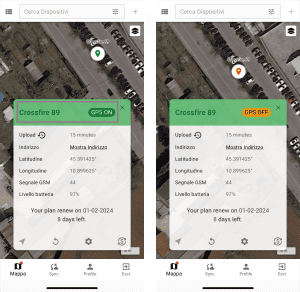
Selecting a device associated with your account, either from the map (by pressing on the location dot) or from the device list, will open the Card with all the states and details of your DiscoveRig.
The Device Card is divided into four simple and intuitive sections to manage the device:
- Device name and status
- Technical information
- Status and subscription renewal
- Action Buttons
DEVICE NAME AND STATUS
At the topmost part of the Card is the name of the DeiscoverRig to which the Card refers and the GPS status. The GPS status can take the following values: GPS ON and GPS OFF, when the GPS status is in OFF mode, the positions on the map will no longer be updated and the GPS on your DeiscoverRig is turned off. When the status is in GPS ON, the positions will update following the set position "Upload" time.
TECHNICAL INFORMATION
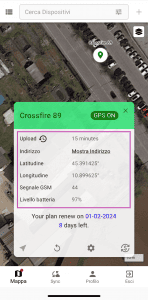
In the middle section of the Card, the following technical information can be found:
- Upload: Upload is how often the position is updated when the device is stationary. DiscoveRig can tell when it is in the same position for more than 5 minutes. If the positions detected in the last 5 minutes are all the same, DiscoveRig will go into StandBy mode, sending the position according to the set Upload time. (Example: I set the Upload time 15 minutes. When DiscoveRig realizes it is stopped, it will send its position every 15 minutes). You can always request the updated position by pressing the "New Position" button in the "Action" buttons of the Card.
- Address: Pressing on the text "Show Address" can display the address associated with the location shown on the nearest map. (If the device is in the middle of a field where there are no roads, the nearest available address will be shown).
- Latitude and Longitude: These are the geographical coordinates received from DiscoveRig, to pinpoint the precise location on the map.
- GSM signal: GMS signal is a value from 0 to 100, this value indicates the signal level of the cellular data network where your DiscoveRig is located. The lower the signal, the more you may experience problems updating the location on the App. (A GMS signal below 25 should be considered low).
- Battery Level: Battery level is a percentage value from 0 to 100, this value indicates the remaining battery level of your DiscoveRig.
- Subscription Status: This section shows the day the subscription will be renewed and the rounds remaining at the next renewal. Pressing on the date will direct you to www.discoverig.it where you can manage your subscription.
OFFLINE DEVICE STATUS
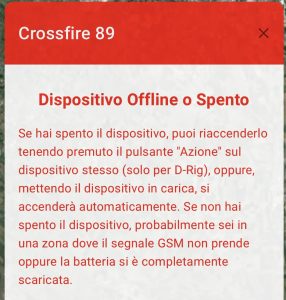
This screen appears in one or more of the following situations:
- When the device is offline: It may happen that during use you are in an area where the GMS signal is poor or absent. When our servers do not receive updates from your GPS device for more than 15 minutes the status "Device Offline or Off" is shown. You do not have to perform any procedures, just wait for the GSM signal to improve or move to an area where the cellular network signal is better.
- When the device is turned off: If you turn off the device from the application, this screen will appear immediately. If you turn off the device by holding down the "Action" button for more than 5 seconds, the screen will appear after 10 minutes. (To turn the device back on you can connect it to a power source, or press the "Action" button for 3 seconds (D-Rig only). The "Device Offline or Off" screen will disappear as soon as the device has made a connection with our servers.
FULLY DISCHARGED BATTERY STATUS
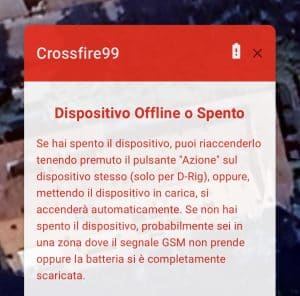
This screen appears when the device battery is completely discharged. Unlike the previous "Offline Device Status" screen, the battery symbol is shown with an exclamation mark next to the device name. To reconnect simply connect DiscoveRig to a power source and wait for the device to recharge (Minimum 30 min).
EXPIRED SUBSCRIPTION STATUS
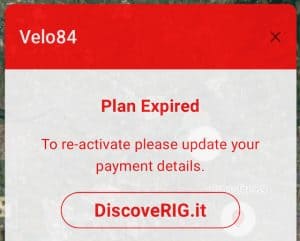
This screen appears when your device's subscription has expired. This screen will disappear once you renew your subscription plan.
It is normal, once the subscription plan is reactivated, to display the "Device Offline or Off" screen because the device was automatically turned off when the subscription expired. Simply connect the device to the power supply, or, press the "Action" button for 3 seconds (Only for D-Rig). The "Device Offline or Off" screen will disappear as soon as the device has made a connection with our servers.
ACTION BUTTONS
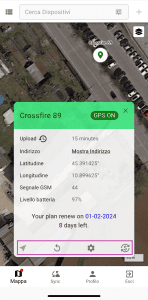
In the lower section of the Card, there are "Action" buttons:
- Find location on Maps or GoogleMaps: Pressing this button will open a small drop-down menu where you can select the "maps" application on your device so you can start navigating with your favorite navigation system to your DiscoveRig.
- Position history: By pressing on this button you can get the history of all the positions detected by your DiscoveRig in given period ti time, which you can set, choosing from the available intervals.
- Settings: Pressing the settings button will bring up the control and command page for the device. (Specifics in the Settings - Control and Command section in the next guide).
- Subscription Recharge: Pressing this button will direct you to www.discoverig.it where you can manage your subscription.

 EN
EN  IT
IT